Home
Home  Navigation


This guide explains how to easily translate web pages using Google Chrome. Learn how to translate entire pages, selected text, and customize translation settings to seamlessly browse multilingual websites.
Step 1:
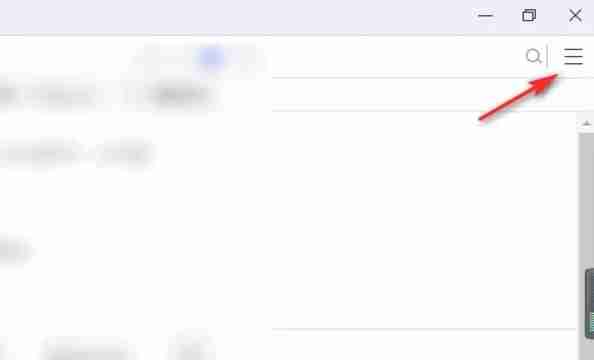
Locate and click the More menu (usually represented by three vertical dots or three horizontal lines) in the upper right corner of your Google Chrome browser.
Step 2:
In the dropdown menu, select "Settings." This will open your browser's settings page.

Step 3:
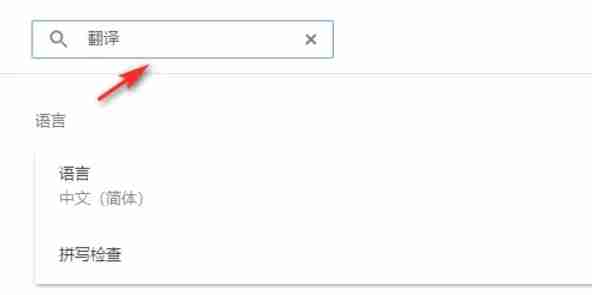
Use the search bar at the top of the Settings page. Enter "Translate" or "Languages" to quickly find the relevant settings.
Step 4:
Locate the "Languages" or "Translation" section and click to access it.
Step 5:
In the Language settings, you'll see a list of languages supported by your browser. You can add or manage languages via the "Add languages" option or review already added languages.

Step 6:
Ensure the "Offer to translate pages that aren't in your language" option is enabled. This will prompt you to translate pages that are not in your browser's default language.
 Latest Articles









 Latest Games